+34 934 356 489
  bcn@avisualstudios.es

chroma
How to embed a live Chroma Key background

In today’s digital age, one of the key elements to enhance the visual appeal of your live broadcasts is having a professional-looking background. Chroma background is a popular option that can instantly transform your live broadcasts with its seamless integration of virtual backgrounds. In this article, we will guide you through the process of embedding a live chroma key background for your live broadcasts.
How Chroma technology works
Chroma, also known as green screen, is a technique that involves recording a subject in front of a specific color background (usually green or blue) and then replacing that background with another image or video during post-production or live broadcasting. This technology is widely used in the film and television industry to create visually stunning and realistic special effects. The most popular example is during the weather section of news broadcasts.
Choosing the right setup
Before diving into the process of embedding a Chroma background, it’s crucial to have the right setup. Here are the essential components you’ll need:
1. Chroma green background
The green background is the key element in the Chroma process. It should be made of a highly saturated and uniform color material. Make sure the surface is large enough to cover the entire area behind the subject.
2. Good lighting
Proper lighting is essential to ensure a clean and accurate keying process. Avoid shadows and ensure the green background is evenly lit. Use soft, diffused lighting to minimize reflections and create a smoother keying process. If you need more information, you can find it in our blog.
3. High-quality camera
A high-quality camera will capture finer details and enhance the overall visual experience. Choose a camera that supports 4K resolution for optimal results.
Setting up the Chroma background Live
Now that you have the necessary setup, it’s time to embed the Chroma background in your live broadcast.
1. Choose the right software or mixer
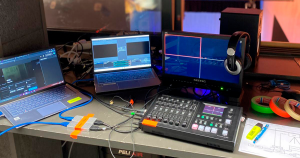
Select a live streaming software or platform that supports the Chroma function. The most popular is OBS Studio if you’re working with a computer, but if you have a multi-camera setup, you’ll also need a mixer for camera control. For example, the Blackmagic ATEM Mini Pro mixer or the Atem TV Studio Pro 4K. Thanks to Blackmagic’s native software, you’ll be able to control and adjust the Chroma Key live. Other options would be the mixers Feelworld LIVEPRO L1 or the Roland VR-4HD.
2. Configure the settings
Once you have the set ready with cameras, mixer, and software, it’s time to activate the Chroma Key. Locate the settings and configure them to remove the background.
3. Import the background image or video
Import the background image or video you want to use as a background into the program. Make sure it has the appropriate size and format to fit the dimensions of the broadcast.
4. Adjust the chroma settings
Adjust the chroma settings to achieve the desired level of transparency and blending. You may need to experiment with settings such as color similarity, green reduction, and edge softening to achieve the best results.
5. Test and refine
Before going live, do several tests to ensure that the Chroma background appears seamlessly and enhances the overall quality of your live broadcast. If necessary, make any adjustments to lighting and positioning.
Additional tips for a flawless chroma background
Now that you know how to include a chroma background in your live broadcasts, here are some additional tips to ensure impeccable results:
Use a solid color background
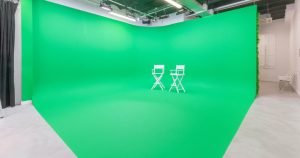
Although green is commonly used, you can also experiment with other solid colors such as blue or even red. However, choose a color that contrasts well with the subject and allows for a clean keying process. At AVisual STUDIOS, we have two chroma studios, one U-shaped in our Madrid studios and another C-shaped in our Barcelona studios. Both include suspended LED lighting in the rental, meaning the studio is already evenly lit so you only need to light the subject.
Avoid reflective surfaces
Reflections from shiny objects or surfaces can interfere with the keying process. Remove any reflective elements or use appropriate techniques to minimize reflections.
Check your clothing
Wearing clothing the same color as your Chroma background can cause unwanted blending. Opt for contrasting colors to ensure a sharp and defined keying process.
Conclusion
Incorporating a Chroma background in your live broadcasts can take your streaming experience to a whole new level. By following these steps and tips, you can seamlessly integrate virtual backgrounds and offer a visually captivating experience to your audience. Remember to choose the right setup, configure the settings correctly, and do plenty of testing to achieve flawless results. In our blog, you’ll also find tips for performing a delayed stream. If you want to ensure professional results and have everything you need for your live broadcast, our chroma studio and the rest of our facilities and services are what you’re looking for. Contact us!